
Getting Oriented
When you log in, the optimizer opens on the MLB DraftKings view. Everything you need to build lineups lives on this one screen, arranged in three zones: the top navigation, the player pool in the middle, and the build bar pinned to the bottom.
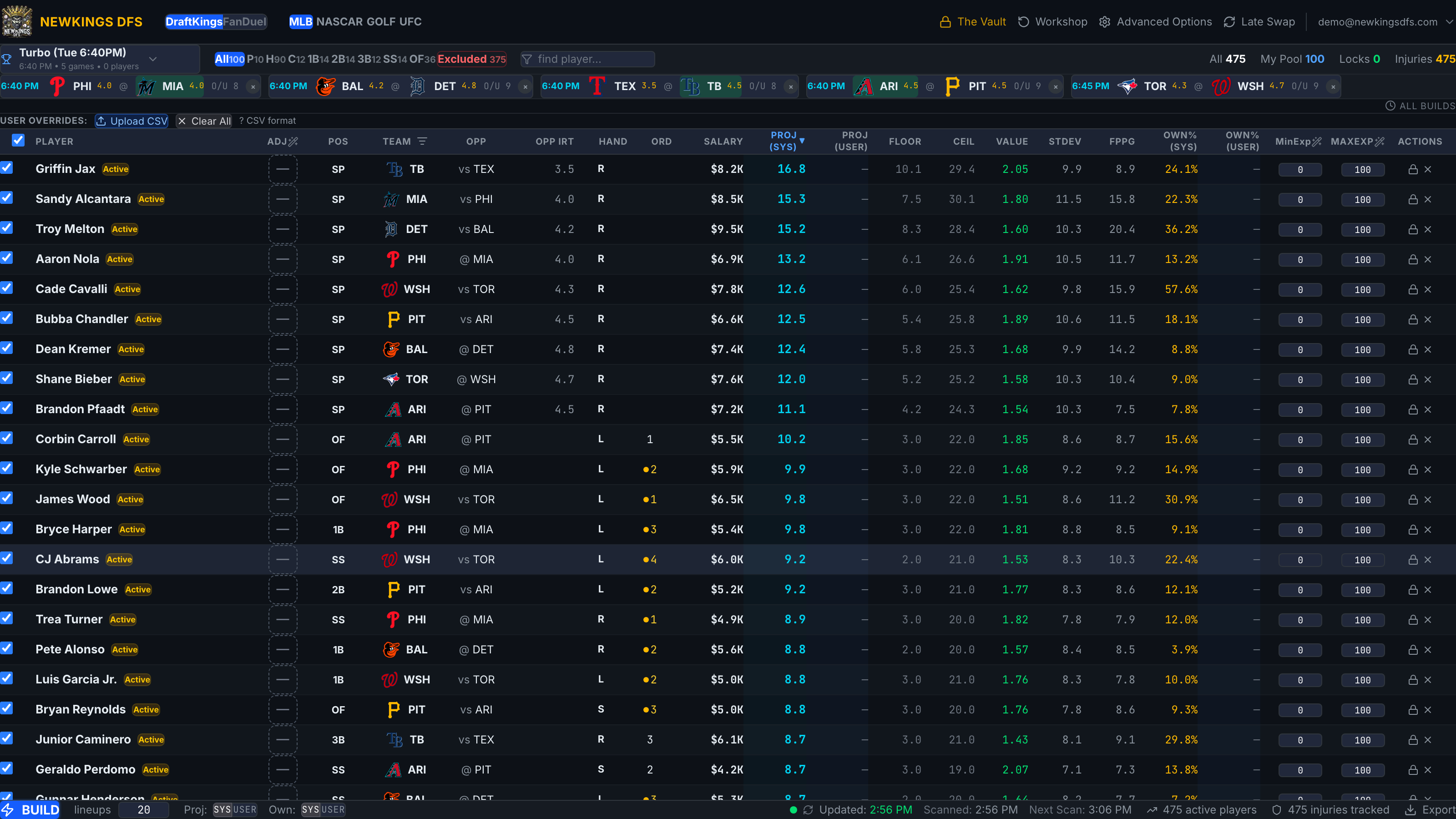
The top navigation
The bar across the top holds, left to right:
- Platform toggle — switches the whole app between DraftKings and FanDuel. Slates, salaries, and export formats all follow this choice.
- Sport tabs — MLB, NASCAR, GOLF, UFC (and more marked SOON). Each sport has its own slates and pool.
- Feature buttons — The Vault, Workshop, Advanced Options, and Late Swap each open a dedicated tool on top of the build screen. Later tutorials cover each one.
- Account menu — far right; shows the email you're signed in with, and holds Log Out.
The player pool
The middle of the screen is the pool: one row per player on the selected slate, with projections, salary, Vegas context, and per-player controls. Directly above it sit the slate selector, position filter chips, and player search, plus one game card per game on the slate.
Reading the Player Pool walks every column; Filtering & Searching covers the controls above it.
The build bar
Pinned to the bottom: the BUILD button, the lineups count, the Proj/Own source toggles, data freshness (Updated / Scanned / Next Scan with a green-yellow-red dot), and Export for the pool CSV. When a build finishes, results appear in a bottom pane between the pool and the build bar.
The platform toggle appears in the top nav on every sport. If the pool ever looks wrong, check the toggle first — a FanDuel pool on a DraftKings contest (or vice versa) is the most common mix-up.