
Managing Saved Builds
Every completed build is saved automatically and appears as a tab at the top of the results pane, so you can compare settings runs and come back to a set later.
Build tabs
Tabs sit above the results toolbar, newest last. Click a tab to load that build's lineups and exposures. Double-click (or use the tab's rename affordance) to give it a meaningful label; the × on a tab deletes that build.

Historical tabs are export-only
A tab from a previous session loads in a locked state: you can view and Export its lineups, but Fill/Randomize and other mutating controls hide until you run a fresh build. This keeps an old lineup set from silently mixing into today's entries.
All builds — cross-slate browser
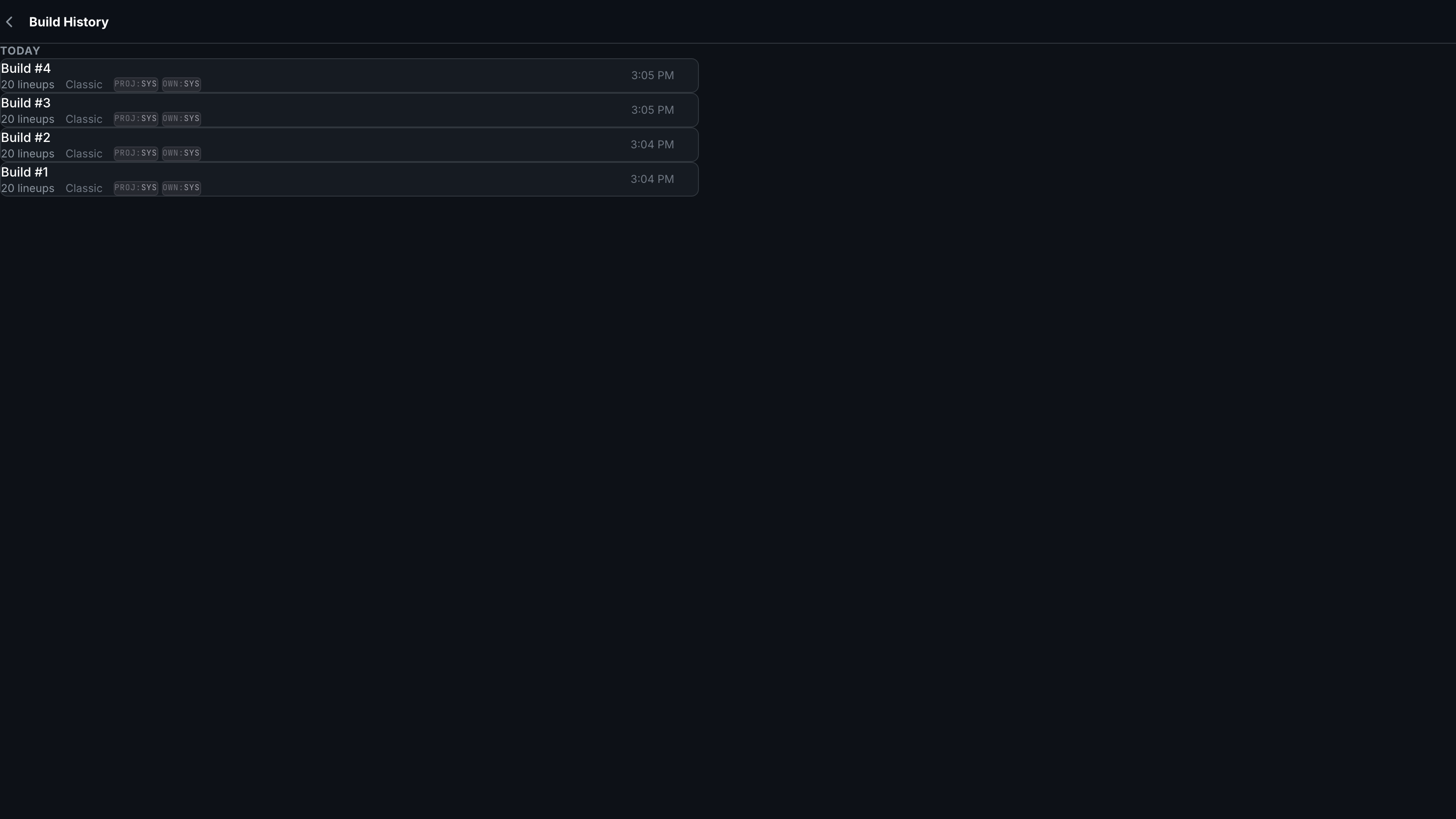
The small All builds link (clock icon, upper right of the pool area) opens a browser of your builds across every slate and date. Selecting one opens its detail view with the full lineup list.
Builds save with the settings that produced them. Renaming tabs after each settings experiment (e.g. "5-2 stacks, 25% rand") makes comparisons much easier than the default labels.